Email F&D - Post-Installation Setup Guide
Complete these steps after installing the package to activate all features.
⚠️ Before You Begin
Install the package using “For Admins Only”.
This ensures only administrators have access by default. You then assign the provided permission sets to users who need access. Installing “For All Users” bypasses permission set security and is not recommended.
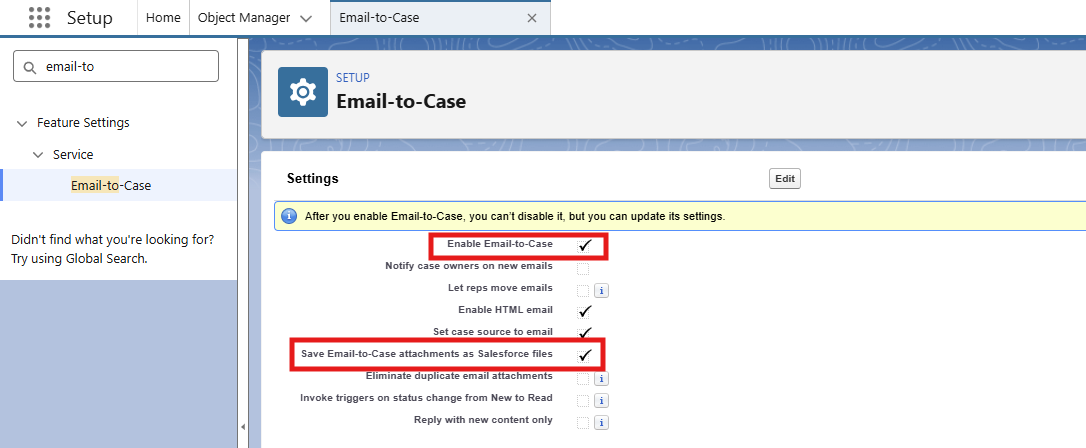
Enable Save Email-to-Case attachments as Salesforce Files (if you use Email-to-Case)
Without this, email attachments will be missing when forwarding or downloading.
Setup → Email-to-Case → Enable "Save Email-to-Case attachments as Salesforce Files" → Save
Step 1 - Assign Permission Sets
Choose the right permission set based on what each user needs:
| User Type | Permission Set | Access |
|---|---|---|
| Sys Admins / Power Users | Email F&D Full Access |
Forward + Download |
| Standard Users | Email F&D Download Only |
Download only |
Setup → Permission Sets → [select permission set] → Manage Assignments → Add Assignment → select users → Assign
The app automatically shows or hides the Forward and Download buttons based on the user’s assigned permission set. No extra configuration needed.
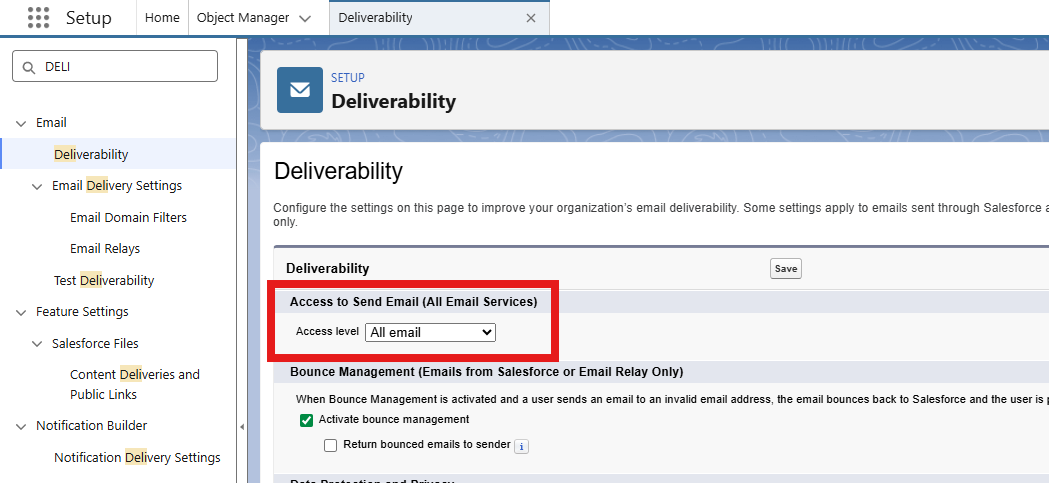
Step 2 - Configure Email Deliverability (Forward feature only)
Required if users will be forwarding emails. Skip this step if your org only needs the Download feature.
Setup → Email → Deliverability → Access Level → Set to "All Email" → Save
Step 3 - Add Download Action to EmailMessage Layout
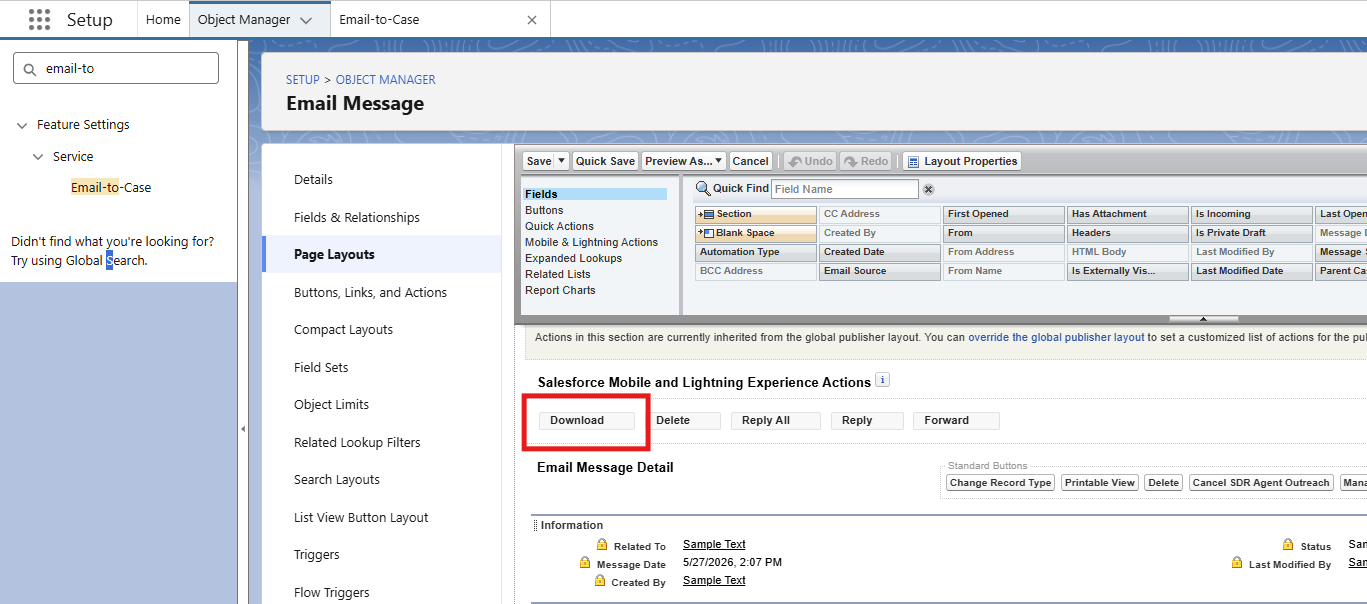
The Download quick action is included in the package but must be added to the page layout manually.
Setup → Object Manager → Email Message → Page Layouts → Edit Email Message Layout
- Scroll to Salesforce Mobile and Lightning Experience Actions
- Click the wrench icon to override predefined actions if needed
- Drag Download from available actions into the action bar
- Click Save
Step 4 - Set Up Email F&D Action (per object)
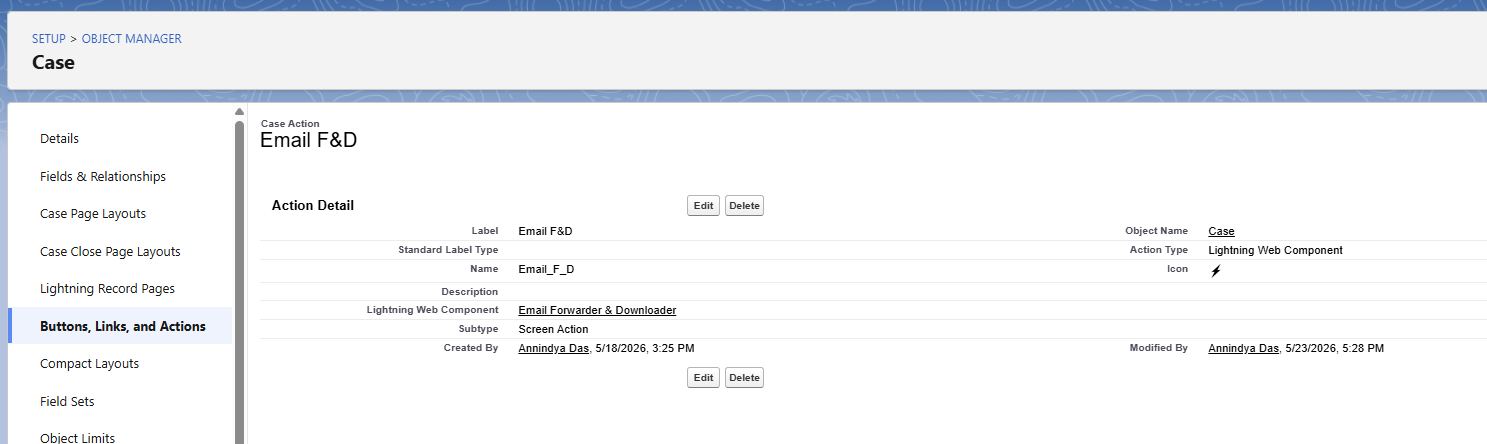
The Email F&D action must be created manually on each object where you want it - for example Case, Contact, Account, or Opportunity. Repeat these steps for each object.
Create the Quick Action
Setup → Object Manager → [Your Object] → Buttons, Links, and Actions → New Action
| Field | Value |
|---|---|
| Action Type | Lightning Web Component |
| Lightning Web Component | adasApps:emailForwarderModal |
| Label | Email F&D |
| Name | Email_F_D |
Click Save.
Add to Page Layout
Setup → Object Manager → [Your Object] → Page Layouts → Edit your layout
- Scroll to Salesforce Mobile and Lightning Experience Actions
- Click the wrench icon to override predefined actions if needed
- Drag Forward Emails into the action bar
- Click Save
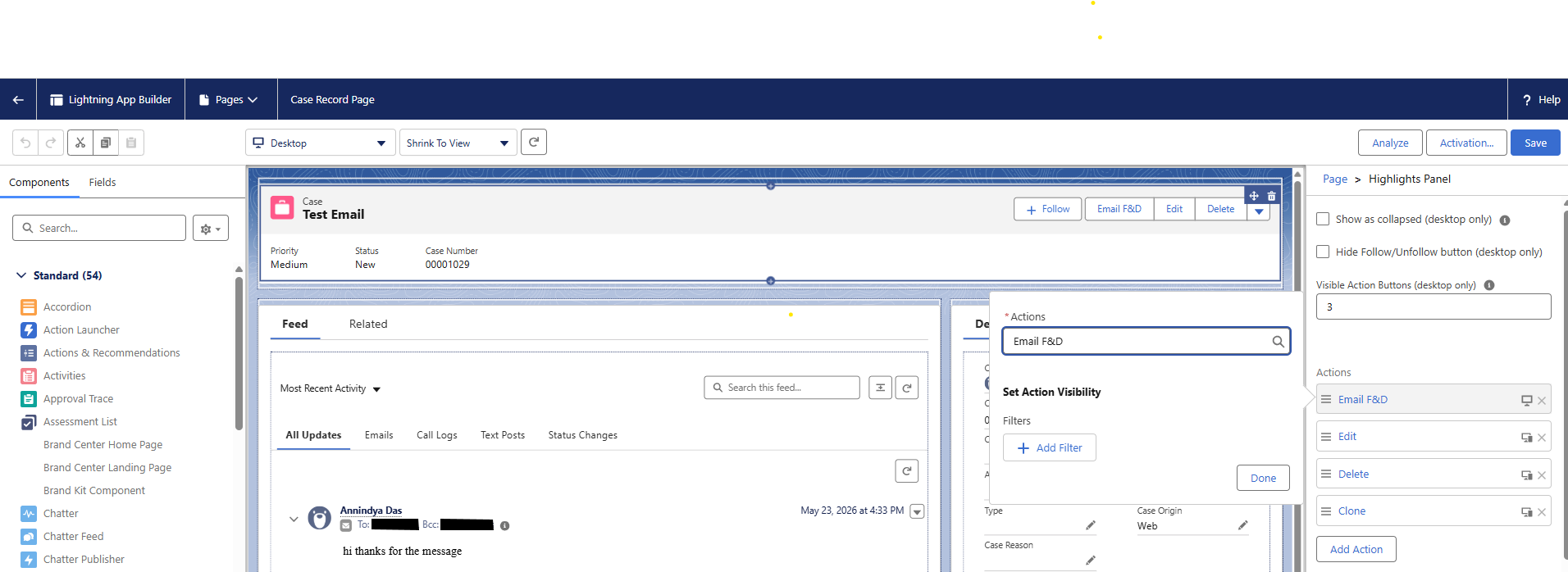
If your org uses Dynamic Actions (Lightning App Builder)
Setup → Lightning App Builder → Edit the Record Page for your object
- Select the Highlights Panel component
- In the properties panel find Actions
- Click Add Action → Forward Emails
- Save and Activate the page
✅ Setup Checklist
| # | Task | In Package | Action Required |
|---|---|---|---|
| Pre | Save Email-to-Case attachments as Salesforce Files | - | Enable in Setup if using Email-to-Case |
| Pre | Install as “For Admins Only” | - | Select during installation |
| 1 | Permission Sets | ✅ | Assign to users based on role |
| 2 | Email Deliverability | - | Set to “All Email” in Setup |
| 3 | Download Action on EmailMessage | ✅ | Add to page layout |
| 4 | Forward Emails Action on each object | - | Create action + add to layout per object |
Using the App
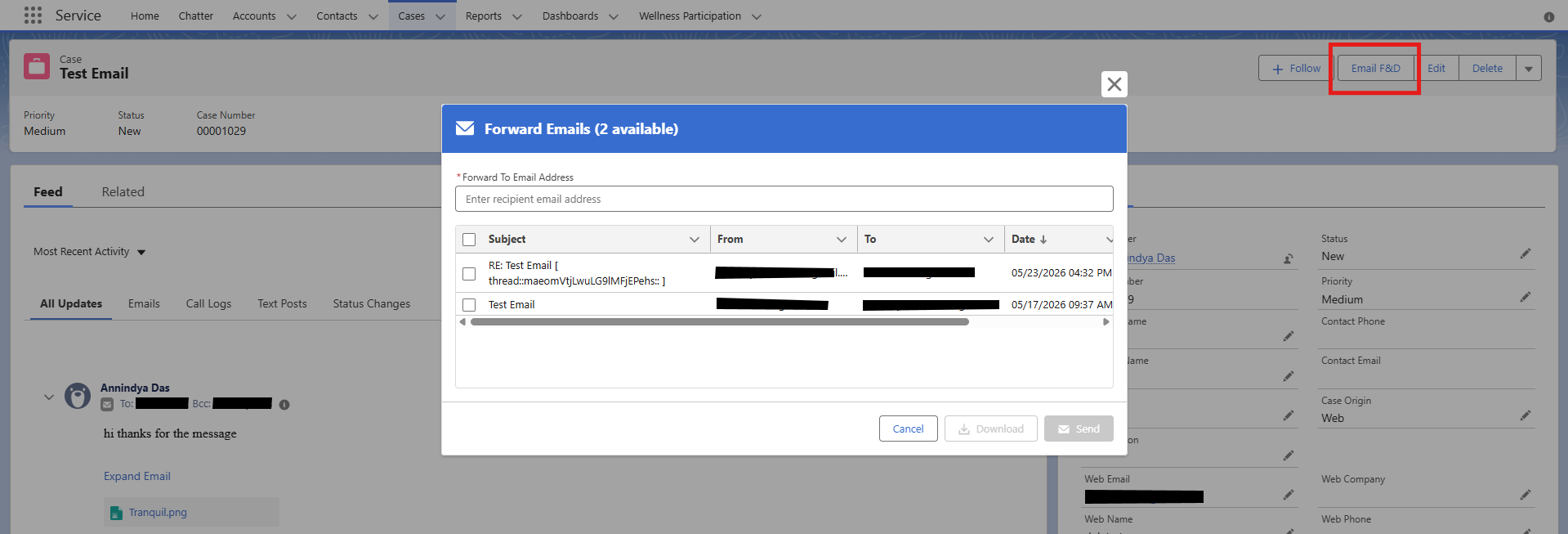
- Navigate to any record with associated emails (e.g. a Case)
- Click the Forward Emails action button
- The modal displays all emails linked to the record
- Select emails using the checkboxes
- Choose your action:
- Forward - enter a recipient email address and click Send. Emails are delivered as
.emlattachments including all original attachments - Download - click Download to save selected emails as a ZIP file containing individual
.emlfiles with all attachments
- Forward - enter a recipient email address and click Send. Emails are delivered as
Support
If you encounter any issues please raise an issue or contact us via the AppExchange listing.