Email F&D (Forward & Download) - User Guide
Prerequisite: Post-installation steps must be completed before using this guide.
See the Post-Install Setup Guide if you have not done so yet.
This guide walks through the two ways to use Email F&D:
- From a Case (or any supported record) - forward or download one or multiple emails as
.emlfiles via the Email F&D Quick Action. - From an individual Email Message record - download a single email directly.
Use Case 1 - Forward or Download from a Record
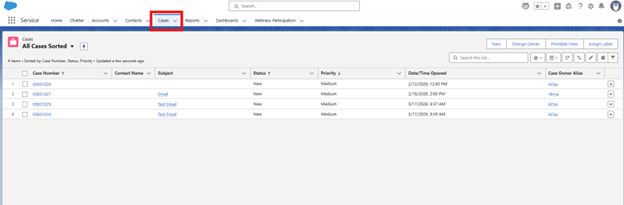
Step 1: Navigate to the Cases tab
Open the Cases tab (or any supported object - Account, Contact, Opportunity, Lead, or a custom object with related Email Messages).
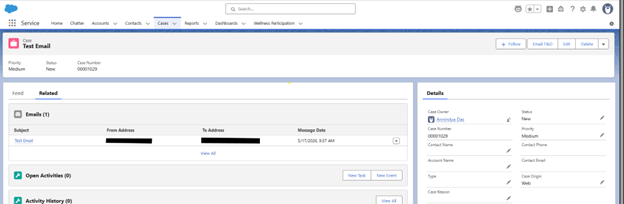
Step 2: Open a Case that has Email Messages
Select a Case that has one or more Email Messages associated with it. You will see the related emails listed in the Feed or Related tab.
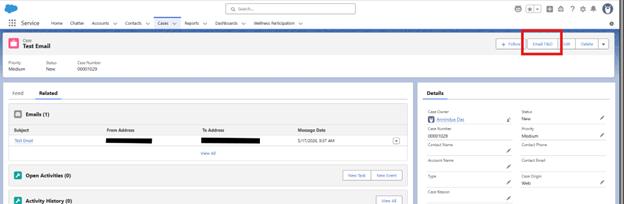
Step 3: Click the Email F&D action
In the Case record’s action bar (top right), click the Email F&D button.
💡 If you do not see the button, ask your Salesforce Administrator to add the Email F&D Quick Action to the page layout and assign you the correct permission set. See the Post-Install Guide.
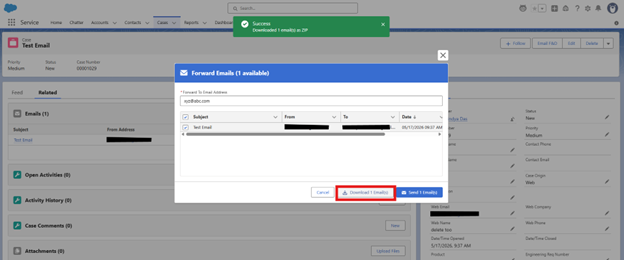
Step 4: Select emails and choose Download or Forward
A modal pop-up will appear listing all emails related to the record (up to 1,000, sorted newest first).
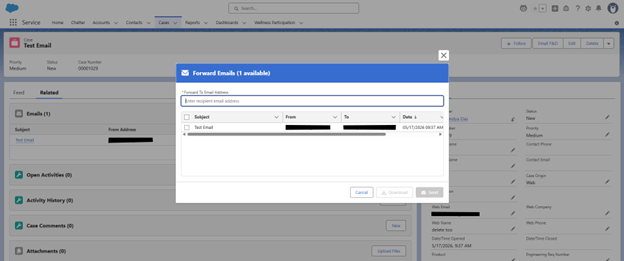
From here you can:
Option A - Download as .eml files
- Tick the checkbox next to the emails you want, or use the Select All checkbox in the header.
- Click Download.
- A ZIP file containing the selected emails as
.emlfiles will be saved to your local machine.
✅ A green success toast - “Downloaded N email(s) as ZIP” - confirms the download.
Option B - Forward emails
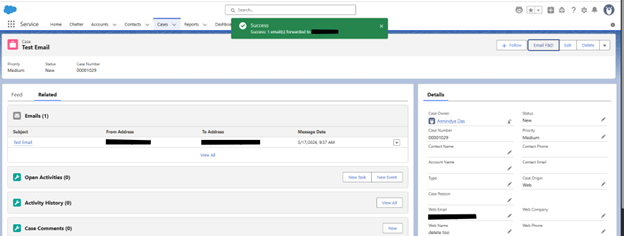
- Tick the checkbox next to the emails you want to forward.
- Type a recipient email address in the Forward To Email Address field.
- Click Send.
- Salesforce sends the selected emails as
.emlattachments to the recipient via its outbound mail service.
✅ A green success toast - “Success: N email(s) forwarded to [address]” - confirms delivery.
Use Case 2 - Download from an Individual Email Message Record
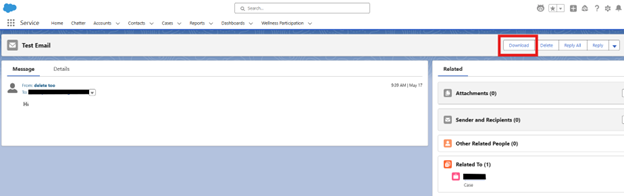
Step 5: Open the Email Message record and click Download
- Navigate directly to an Email Message record (e.g. by clicking the email subject in the Case’s Related list).
- In the action bar, click Download.
- The email is immediately downloaded as a single
.emlfile - no modal or further interaction required.
Summary
| Action | Where | Result |
|---|---|---|
| Download one or more emails | Case / Record → Email F&D button | ZIP of .eml files saved locally |
| Forward one or more emails | Case / Record → Email F&D button → enter recipient | Emails sent as .eml attachments via Salesforce |
| Download a single email | Email Message record → Download button | Single .eml file saved locally |
Frequently Asked Questions
Q: I don’t see the Email F&D button on my record.
A: Ask your admin to add the Quick Action to the page layout and assign you the Email_F_D_Full_Access or Email_F_D_Download_Only permission set.
Q: The Forward button is not visible in the modal.
A: You have been assigned the Email_F_D_Download_Only permission set. Contact your admin if you need forwarding access.
Q: How many emails can I select at once?
A: The modal displays up to 1,000 emails per record. All can be selected and downloaded or forwarded in a single action.
Q: What file format are the downloaded emails in?
A: Emails are downloaded as .eml files (RFC 822 format), bundled in a .zip archive. .eml files can be opened in most email clients including Outlook, Apple Mail, and Thunderbird.
Q: Does forwarding create an activity or log on the record?
A: No. The forward action uses setSaveAsActivity(false), so no Task or EmailMessage record is created as a side-effect.
Need Help?
Raise an issue on GitHub or contact us via the AppExchange listing page.
| *Part of the adasApps AppExchange Documentation | Built for the Salesforce community.* |